
Get to know FastPlan, Arkyn's planning and scheduling software for SAP maintenance teams, with an end-to-end demo from Martin Holm Nielsen, Co-founder and CEO at Arkyn.
In this introduction to FastPlan video, you will learn how to:
- Build a planning perspective and choose who can see it.
- Overlay work orders with your resource capacity.
- Customize columns, grouping, and the data each view shows.
- Reschedule work by dragging orders across the timeline.
- Save alternative plans and test them before committing to SAP.
- Adjust resource capacity for things like vacation.
Here's the full, written walkthrough.
Start by building a planning perspective.
FastPlan is built to be visual and configurable, because planning and scheduling looks different in every department and area of a plant. So you don't start from a fixed screen. You build the perspectives your team needs.
To create one, add a new perspective and give it a name, such as a four-week overview, along with a short description.
Then choose its layout. The demo uses a split horizontal layout, with work orders across the top and resources below.
You also decide who else can use it: make it public so everyone in the company can open it, keep it private to you, or share it as read-only so others can see it but not change it.
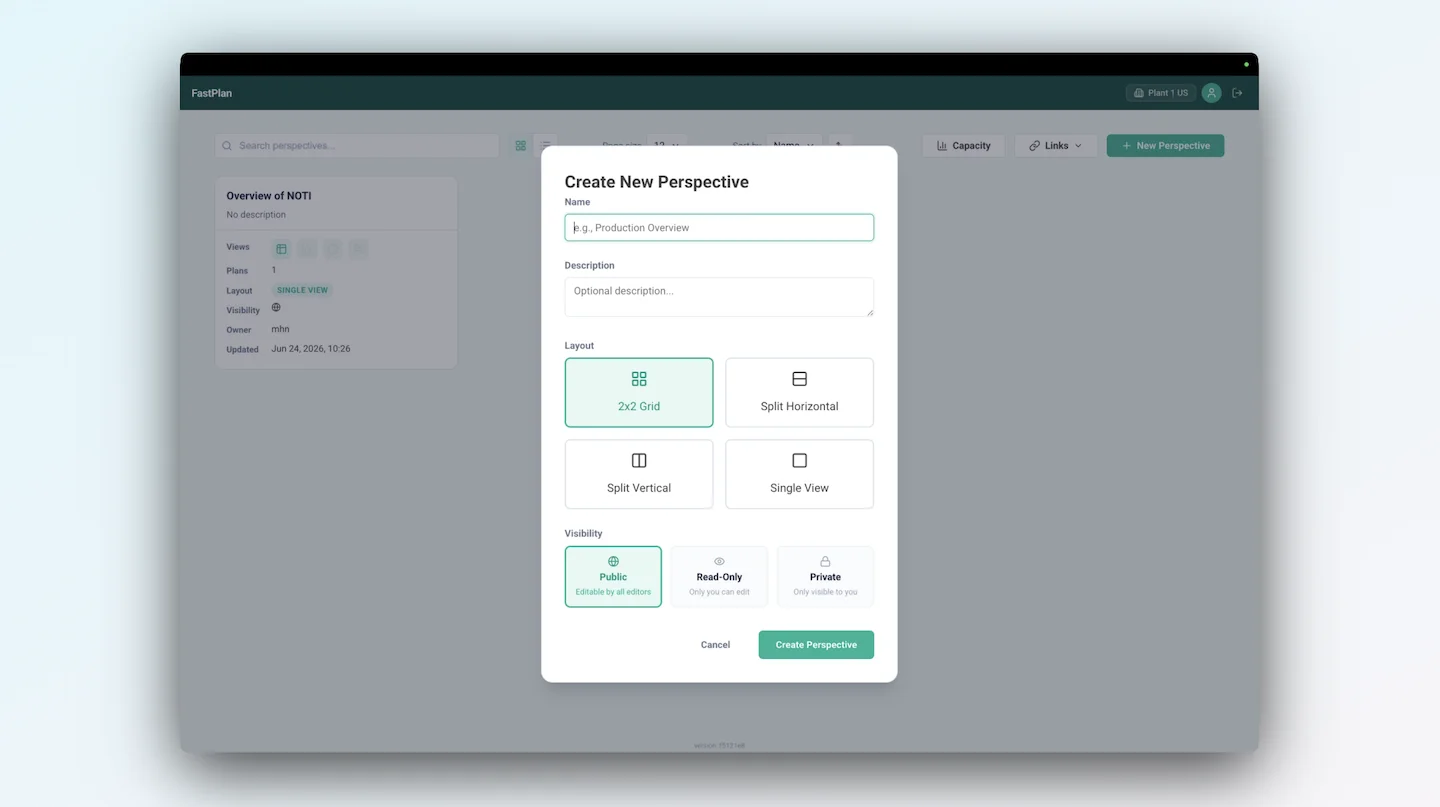
Choose the work orders you want to plan.
Inside a perspective, you decide exactly what you are looking at. The demo starts with a simple goal: see the work orders for the next four weeks against the capacity to do them.
To do this, you can add a Gantt component for your work orders, then pick which SAP date fields to plan against. The demo uses basic start and basic finish. FastPlan pulls in every matching work order for the period straight away, laid out across the timeline.
Save the perspective and it is ready whenever you open it.
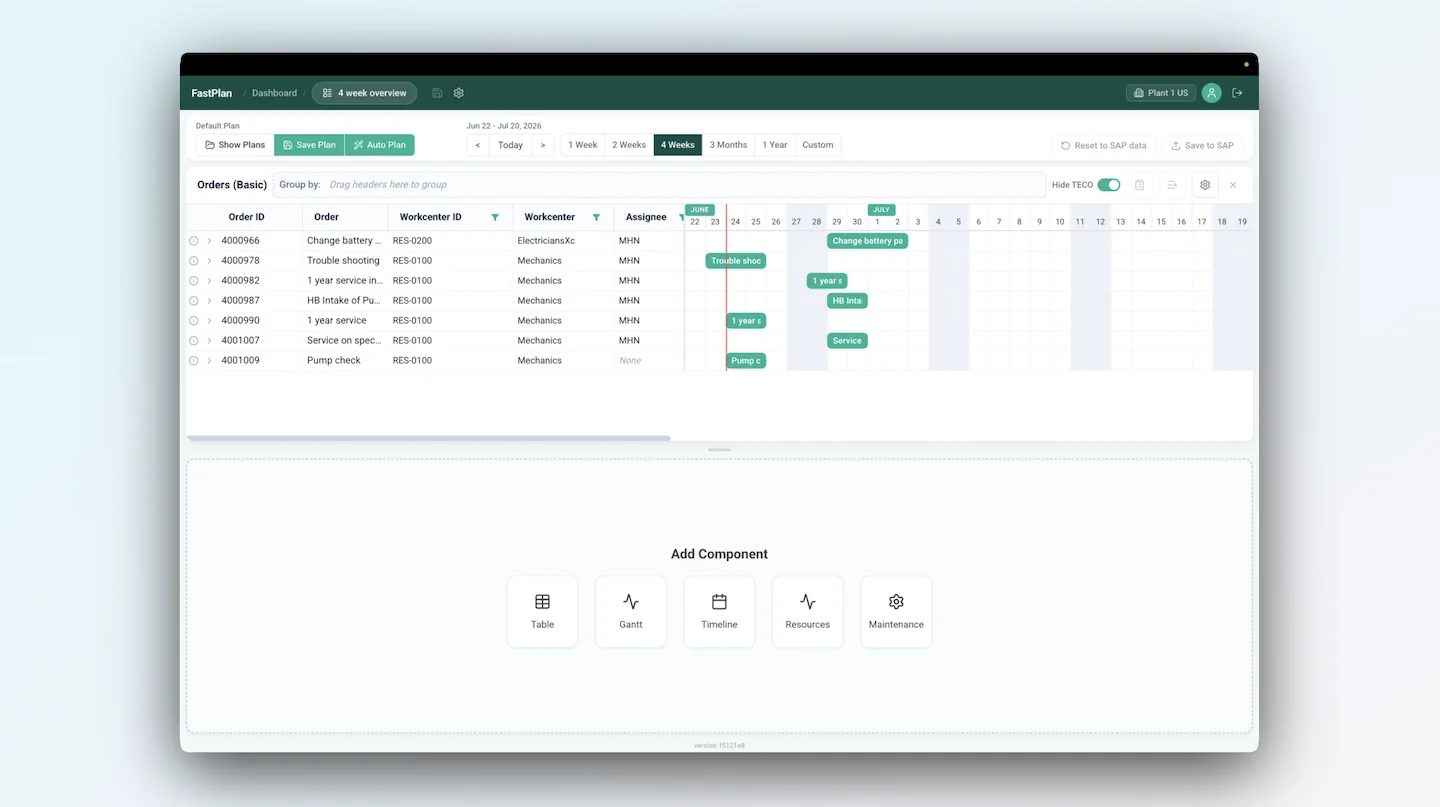
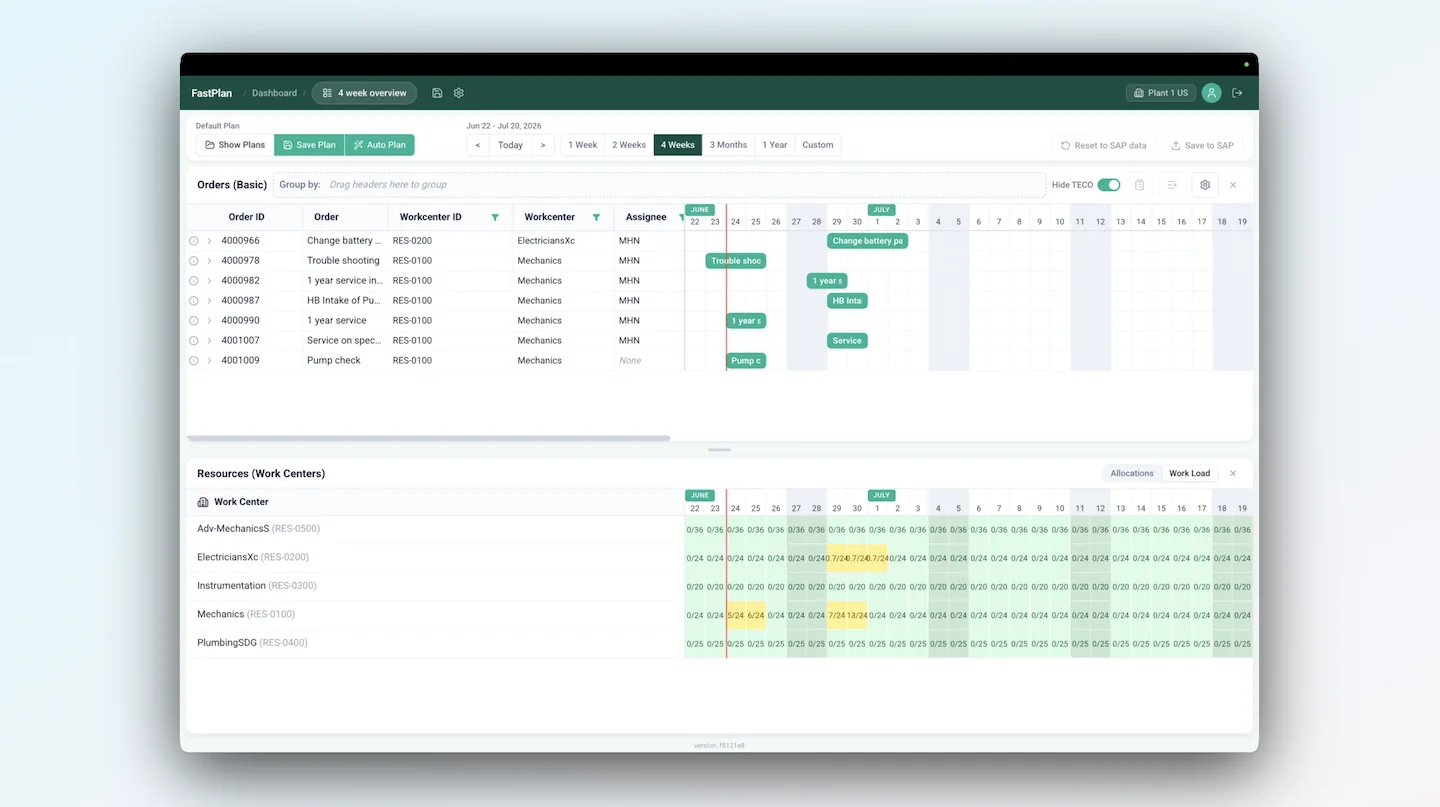
Overlay work orders with resource capacity.
A schedule only makes sense next to the people and resources behind it. In the lower half of the perspective, add your resources. The demo uses work centers, which brings in each work center with its available capacity and its current load.
Now you can see free capacity at a glance, and the dates where orders are stacking load onto a work center. Save the perspective, and when you return to it later, it opens exactly as you set it up.
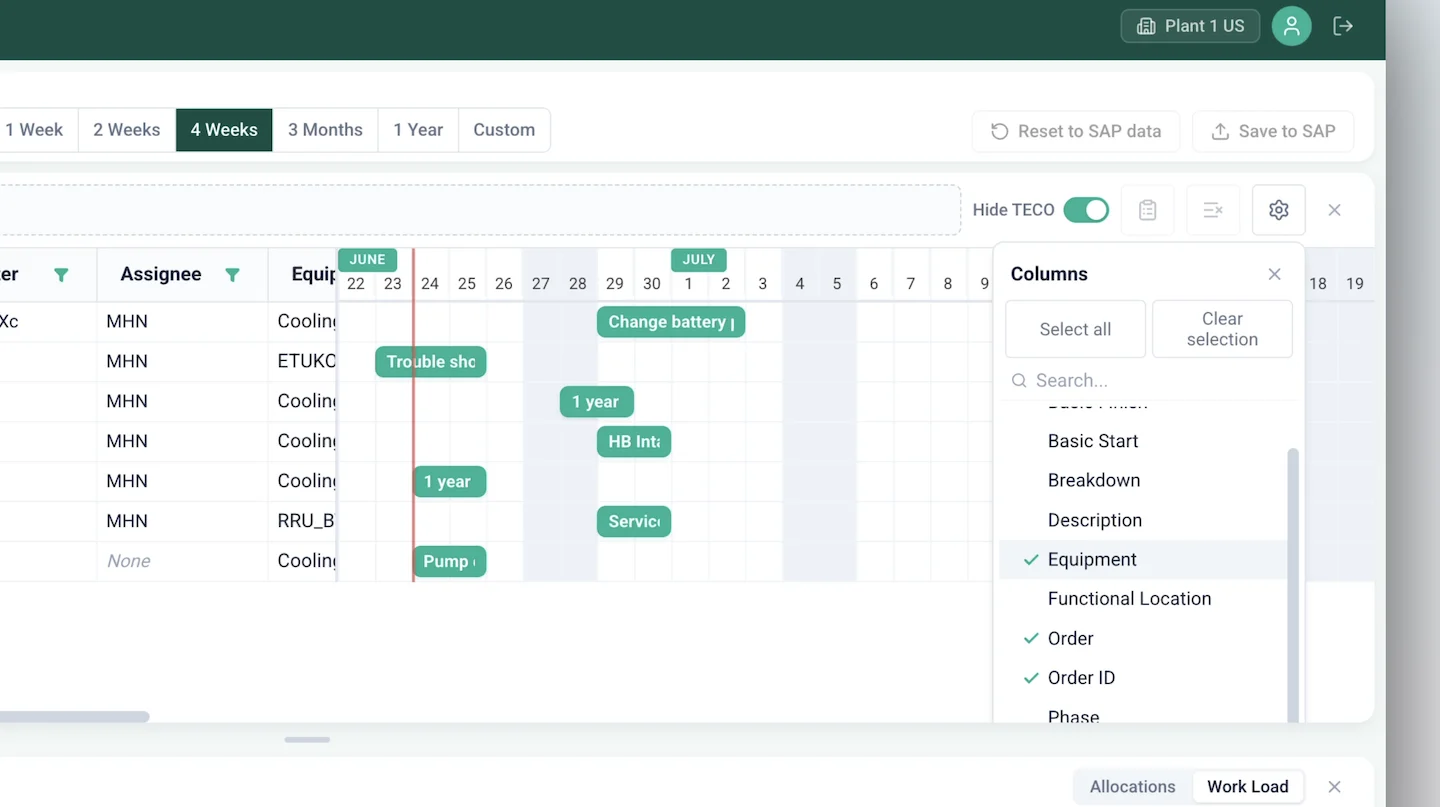
Customize the columns and grouping.
Every planner reads a schedule differently, so the columns and grouping are yours to set.
If a column you need is missing, open the column manager and add it. The demo adds equipment, phase, and priority.
You can also regroup the view on the fly. Drag a column header into the grouping area and the work orders reorganize, for example grouped by priority. Save the view and it stays that way next time.
You can swap the resource half too. Delete the work center component and add employees instead, and you see each person and how they are allocated against the work. The demo switches back to work centers for a simpler overview, but the choice is yours per perspective.
Open and edit orders without leaving FastPlan.
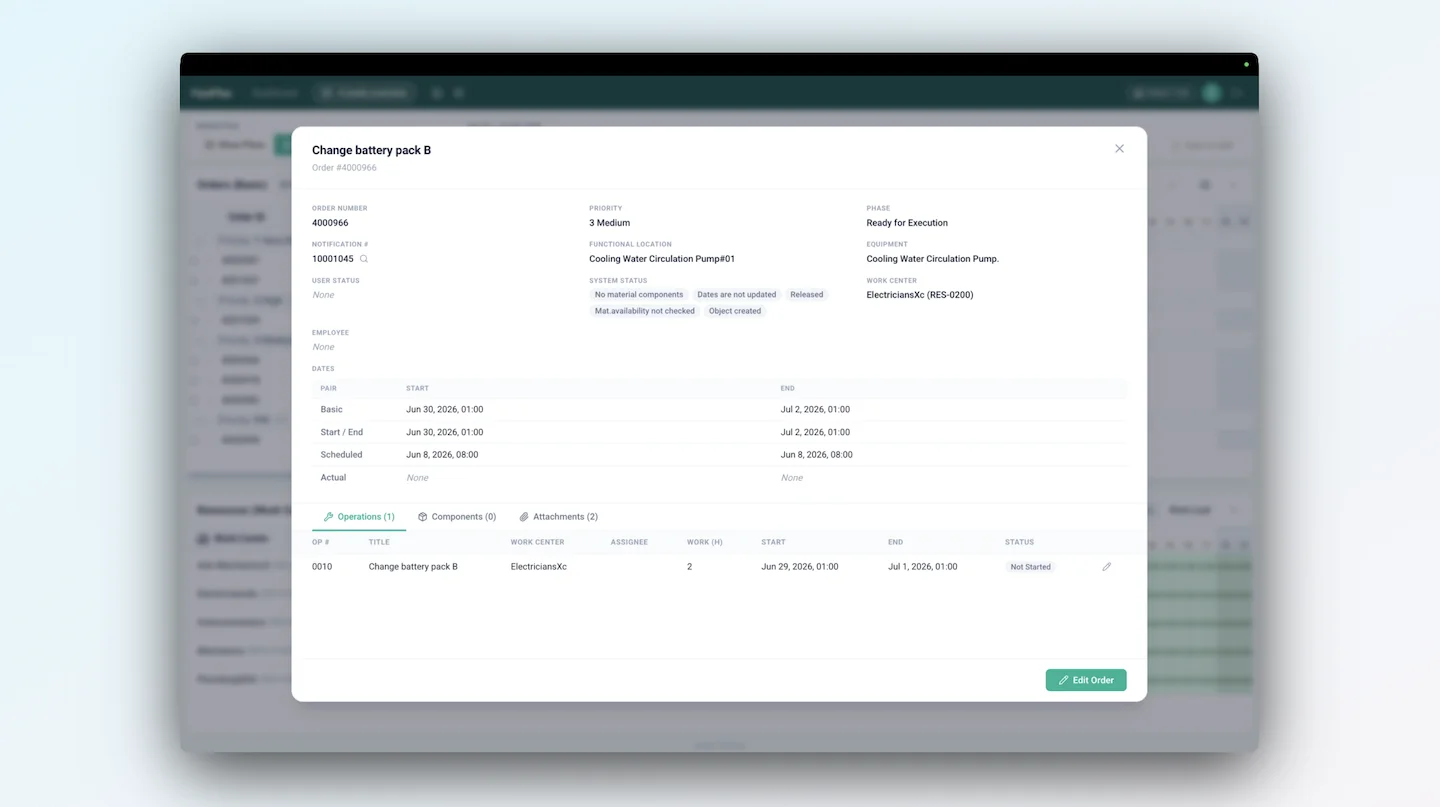
You can open any order straight from the perspective to see its operations, components, and attachments. If something needs to change, edit the order or its operations right there in the scheduling view, with no jumping into SAP GUI.
You can also act on several orders at once. Select multiple orders and change them together, for example moving them to a different work center or assigning them all to one employee in a single step.
Schedule visually by dragging orders.
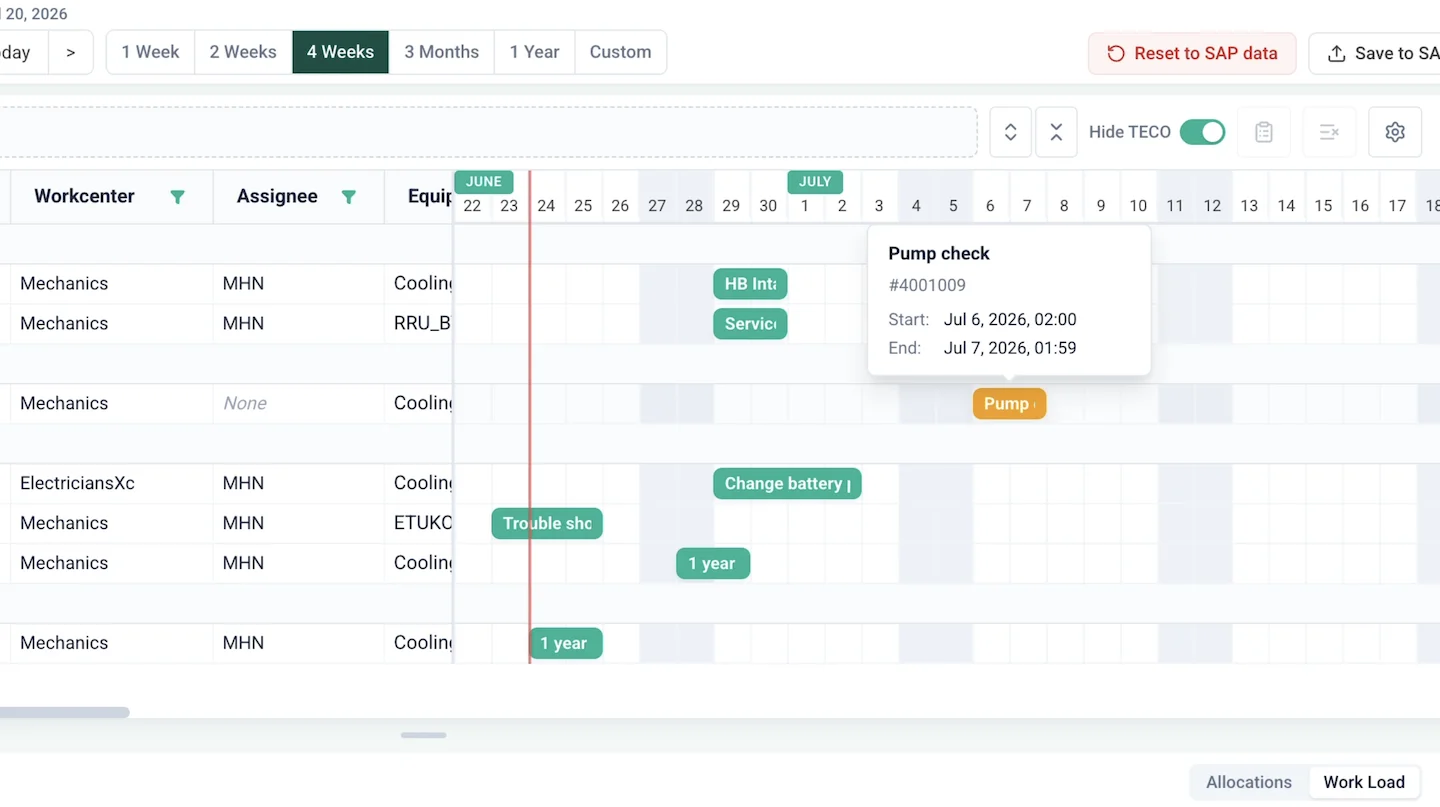
The fastest way to manually schedule is to drag and drop. Move an order along the timeline and it lands on the new dates and turns orange to show it has changed.
That change lives in your plan, but it is not in SAP yet. That is deliberate. Planners need room to try a schedule, see how it affects resources, and talk it through with operators and others before anything is committed.
FastPlan keeps your working plan separate from SAP until you decide to commit.
Save alternative plans for different scenarios.
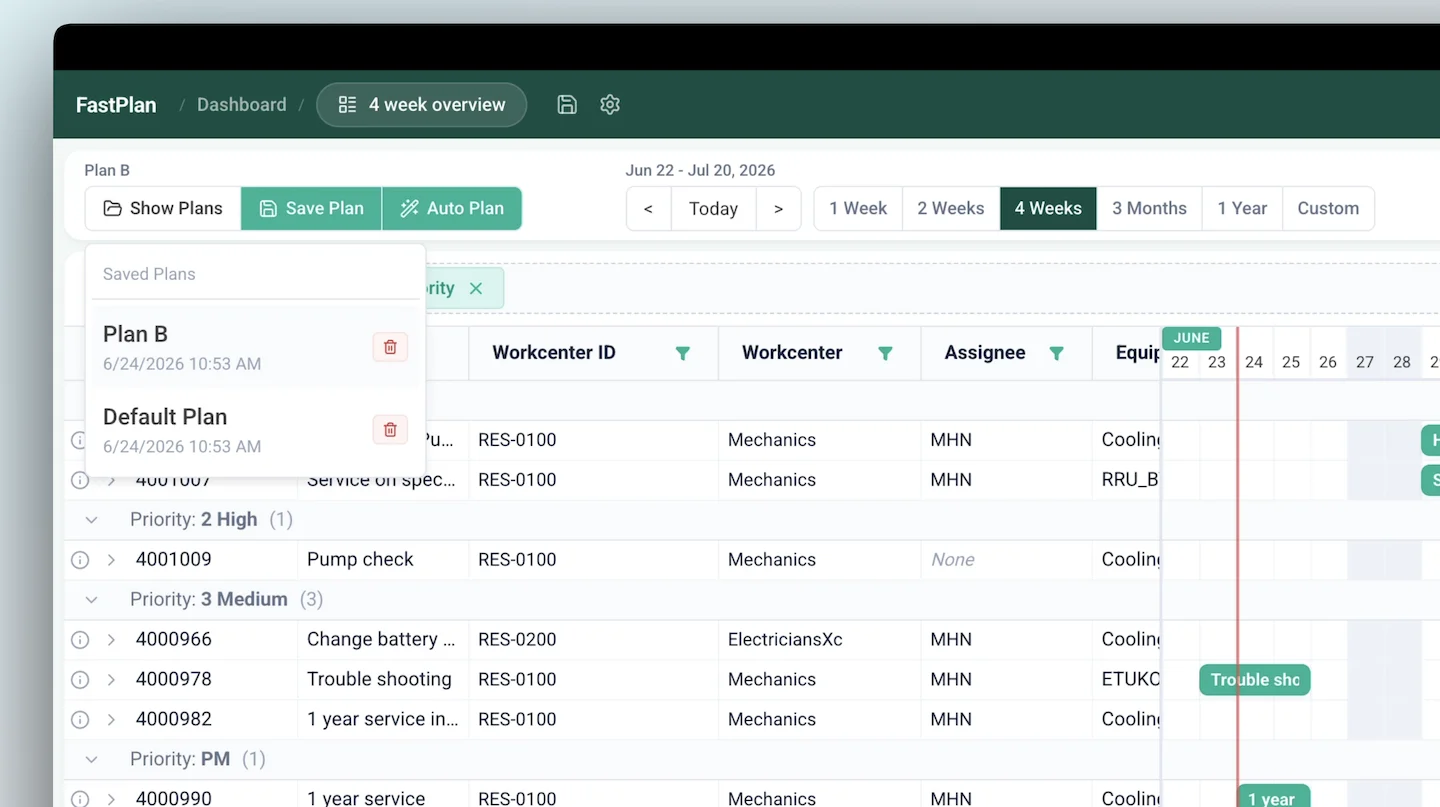
You can keep more than one plan. The plan already in place is your default, and you can save changes straight over it with override. Or you can build an alternative, move a few orders around, and save it as a separate plan, such as a plan B.
Now you have two plans side by side, a default and an alternative. It makes scenario planning straightforward.
You can compare how each version affects your resources, and show people exactly how a given plan would play out on production before you commit to it.
Commit your plan to SAP when you're ready.
When a plan is right, commit it with save to SAP. It has two modes.
Run a test first and SAP checks the changes and tells you whether they are fine to commit, so you catch issues before they land.
The demo runs a test on two moved orders, gets the all-clear, and saves. The orders then move in SAP exactly as planned.
Automate planning and apply your own rules.
There is far more configuration under the surface than one video can cover. FastPlan includes auto-assignment and auto-planning, which we will walk through separately.
You can also drive the look of a perspective with rules, so orders take a specific color based on status, priority, or assignment. The result is a view that matches exactly how your team works.
Work from simpler views, like outstanding notifications.
Not every perspective is a full Gantt. You can build something as simple as a single-column table.
The demo shows a table of outstanding notifications for the next four weeks, with the columns, grouping, and filters set to show just what the planner needs.
From a view like this you can edit a notification or create an order from it on the spot and get a technician going. You can have as many perspectives as your process needs, each tuned to a different part of planning and scheduling.
Adjust resource capacity directly.
FastPlan also has a capacity view that reads the underlying availability from SAP, or from another HR system if that is where it lives.
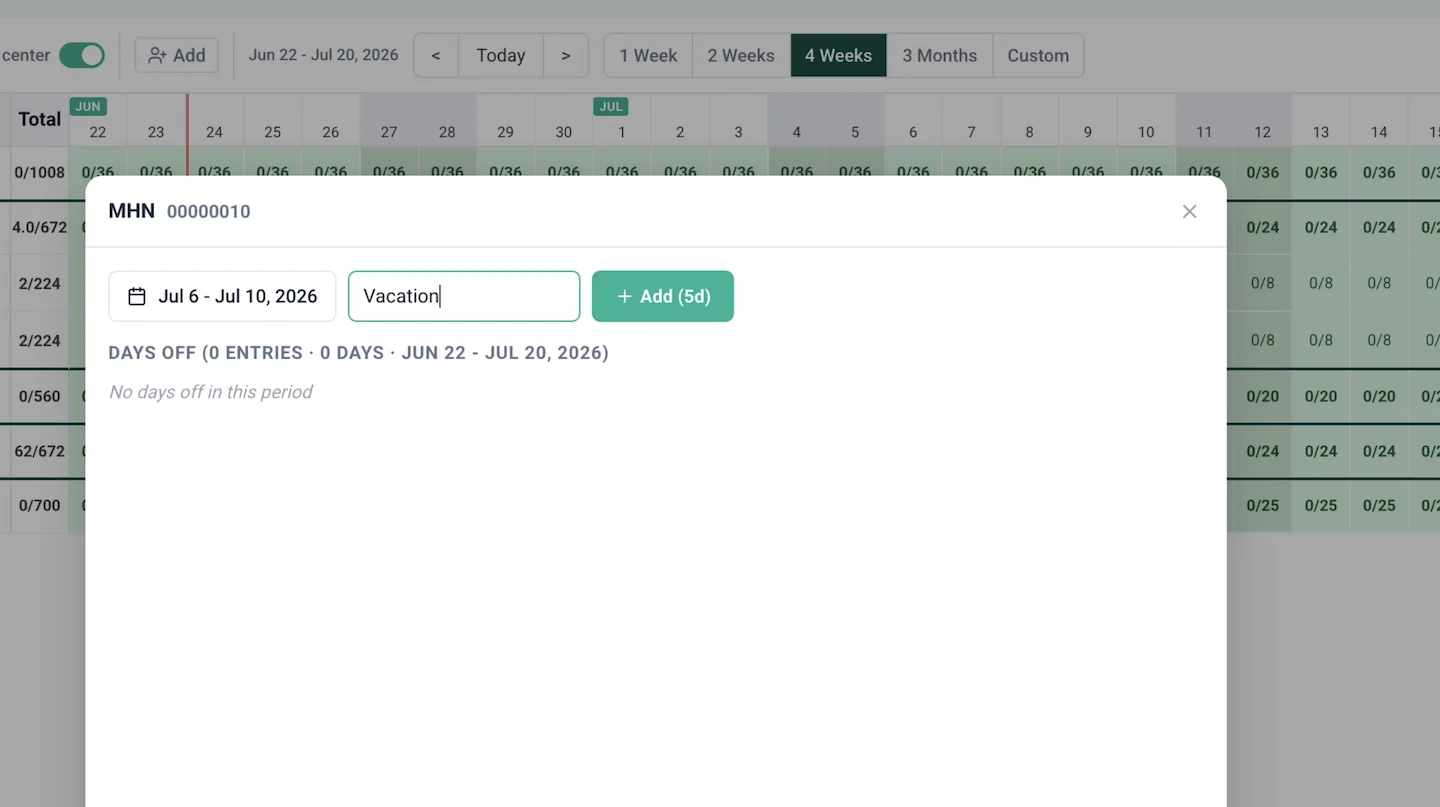
If something is not yet in the back end, you can adjust capacity by hand. Mark yourself on vacation for a week, for example, and that capacity is deducted from you for that period.
It reads any vacation already registered in the source system, and lets you make the day-to-day adjustments that keep the available capacity your planners see honest.
Get in touch with us to see Arkyn in action.
That is the core of FastPlan, and there is far more configuration underneath.
If there is a process you want to see or a planning question specific to your plant, get in touch.