
Get to know FastWork, Arkyn's mobile work order app for SAP maintenance teams, with an end-to-end demo from Martin Holm Nielsen, Co-founder and CEO at Arkyn.
In this introduction to FastWork video, you will learn how to:
- Navigate the app and find the work assigned to you.
- Open a work order and see the SAP data behind it.
- Work through operations, report time, and add components.
- See how to capture a 3D model of equipment from a phone.
- Ask the built-in AI assistant about a problem in the field.
- Complete and technically close an order in SAP.
Here's the full, written walkthrough.
Start on the home screen.
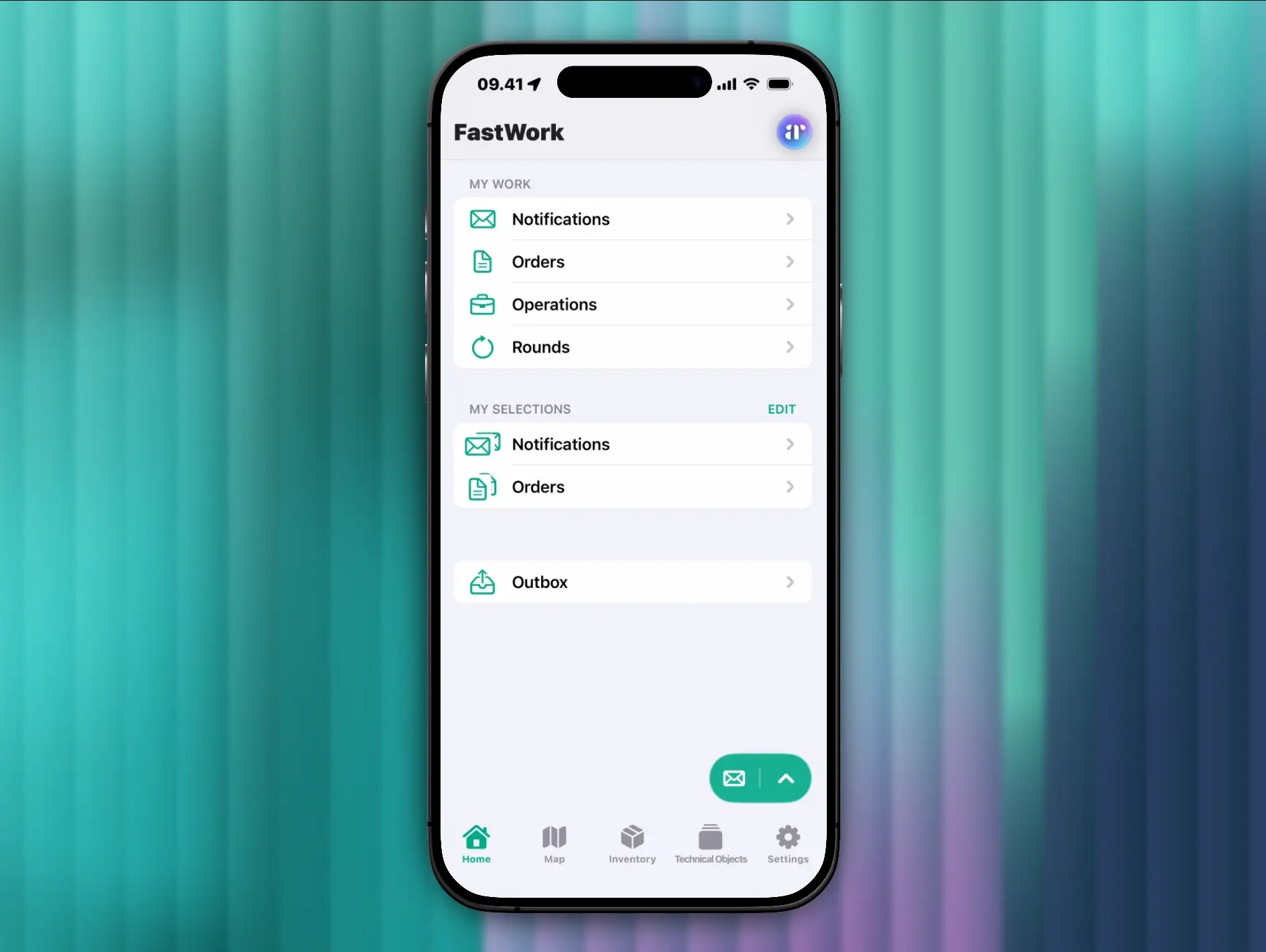
When a technician opens FastWork, the home screen is the first thing they see. You can configure what shows up for each role, so people only deal with what matters to their job. In this video, we've switched everything on.
The main section is My work. It holds the notifications, orders, operations, and rounds assigned directly to you. Below it, My selections holds everything else you might care about but that isn't assigned to you directly.
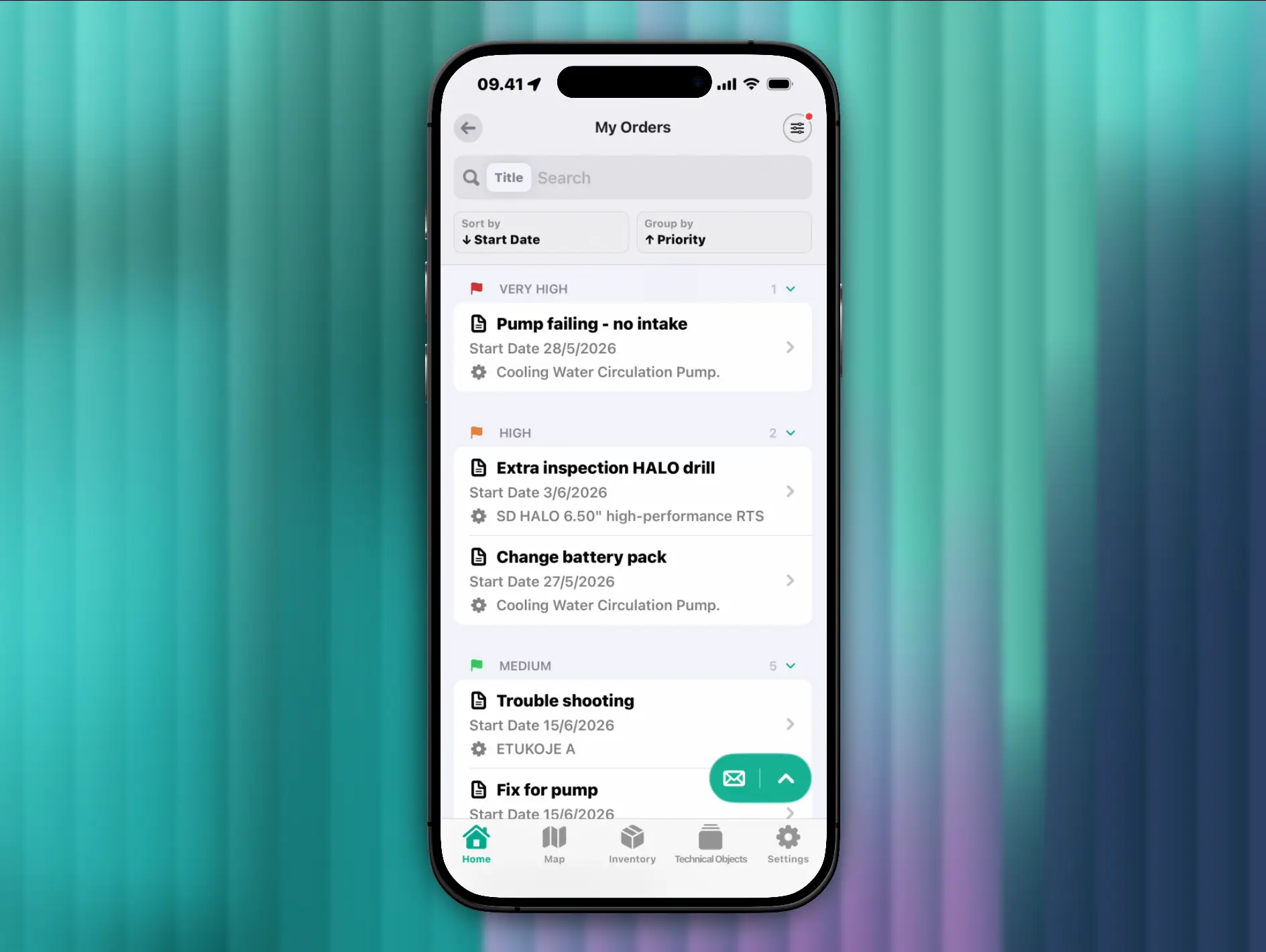
Tap orders and you get the list of work orders assigned to you. You decide how that list behaves. In the video it's sorted by start date, grouped by priority, and shows the short text as the headline for each order. Scroll through, open any order, and apply filters to focus on the right work.
Open a work order and see the SAP data behind it.
Open an order and everything from SAP comes with it: the short text, start and end dates, the linked notification, status, and priority.
If your technicians don't need to see the assignment criteria or any other field, you can filter it out of the view.
From here a technician can see exactly what they're about to maintain. In the video it's a cooling water circulation pump, shown as the technical object on the order.
Explore the technical object.
You can tap the technical object to pull its full record from SAP. There, you’ll see where it sits in the technical structure, any images, and master data like object type, planner group, validity, and serial number. If you maintain classifications or GPS positions, those appear too, and you can view the asset's location on a map.
Here are three parts worth a closer look.
Measurement points show historic readings as a graph over whatever period you choose, so a technician can see how the equipment has been performing. You can also record new readings on the spot.
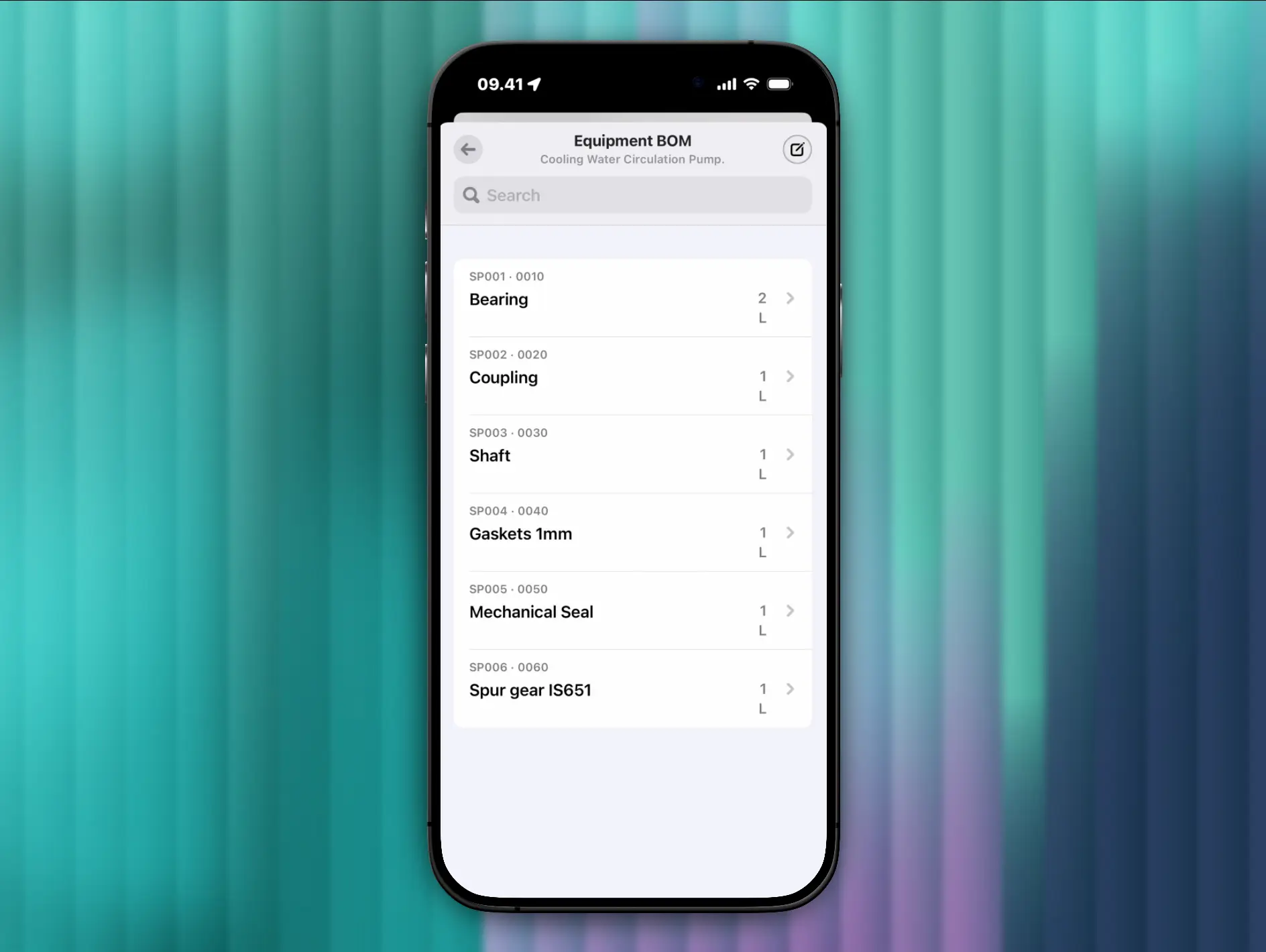
The bill of material lists the components that make up the asset. The way we like to explain it: if the pump is the cake, the bill of material is the ingredients. Tap a component to look into the warehouse and check stock at the locations relevant to you, so you know before you walk over whether the part is there.
The history view lays out everything done to this equipment in SAP on a timeline: past notifications, images, and orders. It's the full maintenance history in one place, without digging through SAP screens.
Capture 3D models of equipment.
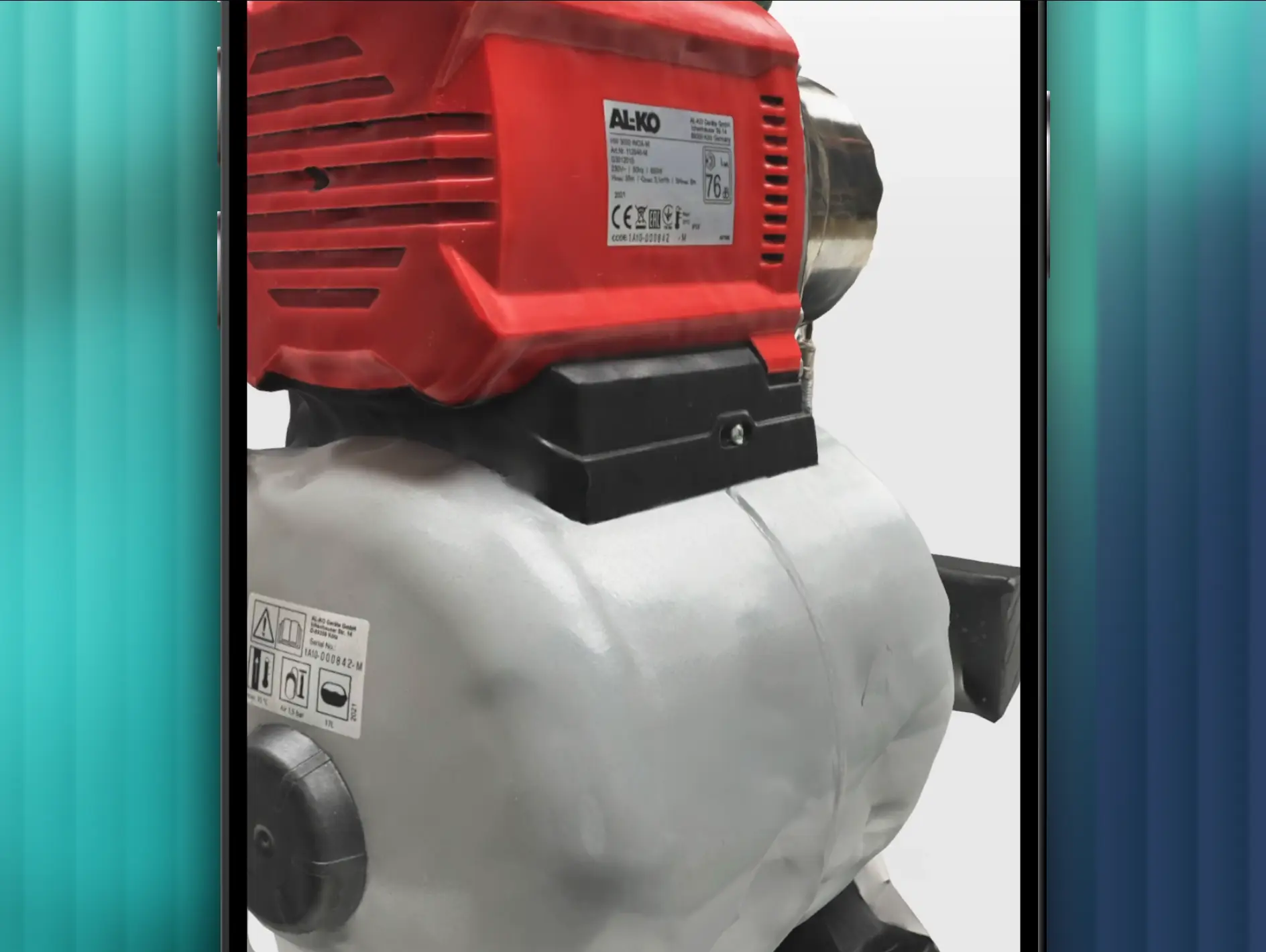
In FastWork, any technician can create and view 3D models of your equipment from their phone.
The model in the example isn't flawless, but it's detailed enough to read labels, markings, and serial numbers, and to check the real condition of the asset.
Once a 3D model exists, anyone looking at that equipment can open it for reference, compare how an asset has deteriorated over time, or see what it looks like right now without traveling to it.
Five tabs inside work orders.
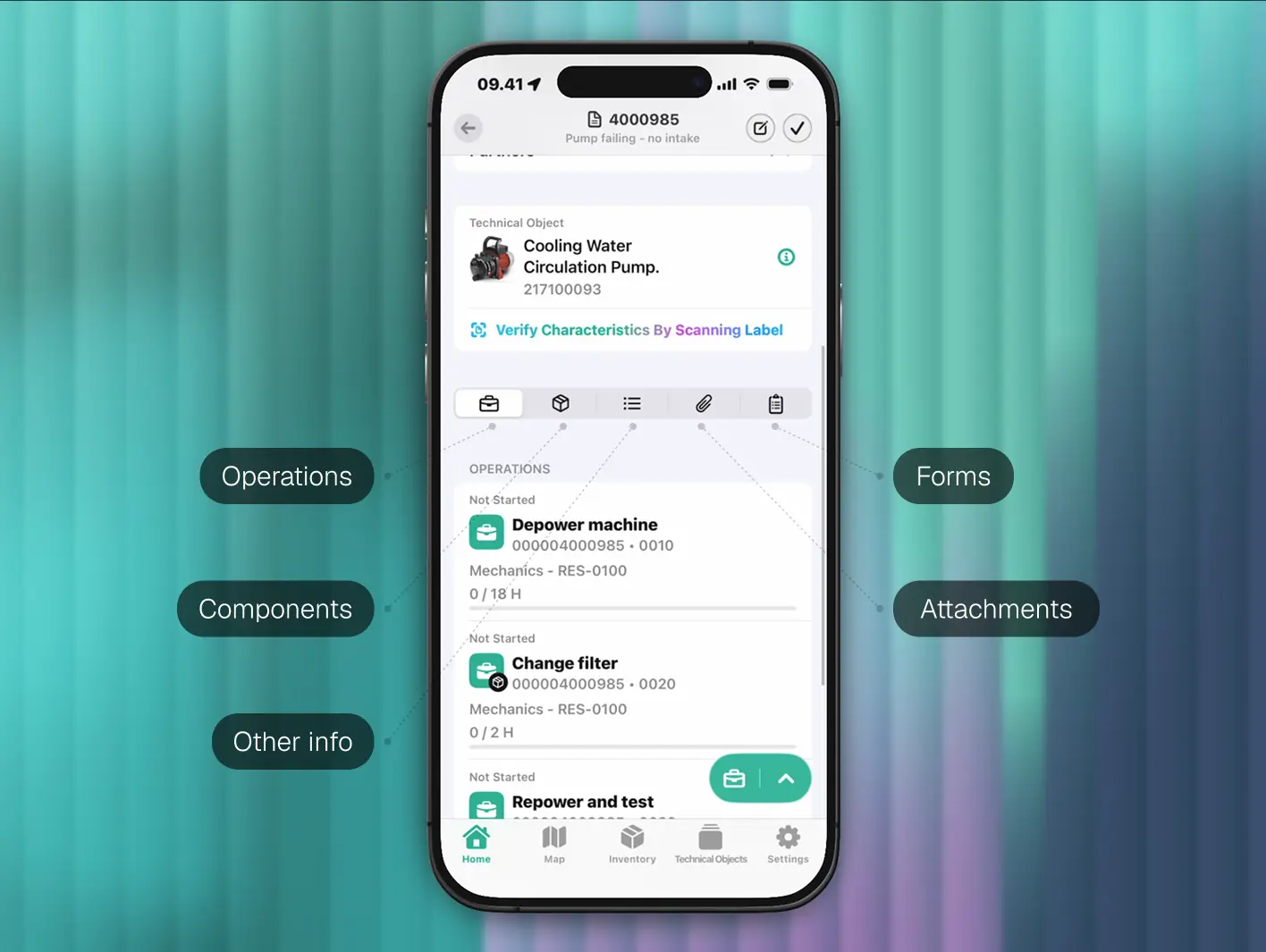
Inside a work order, details and actions are divided into five tabs.
- Operations.
- Components.
- Other info.
- Attachments.
- Forms.
The operations tab.
The first tab is operations: the tasks you need to carry out.
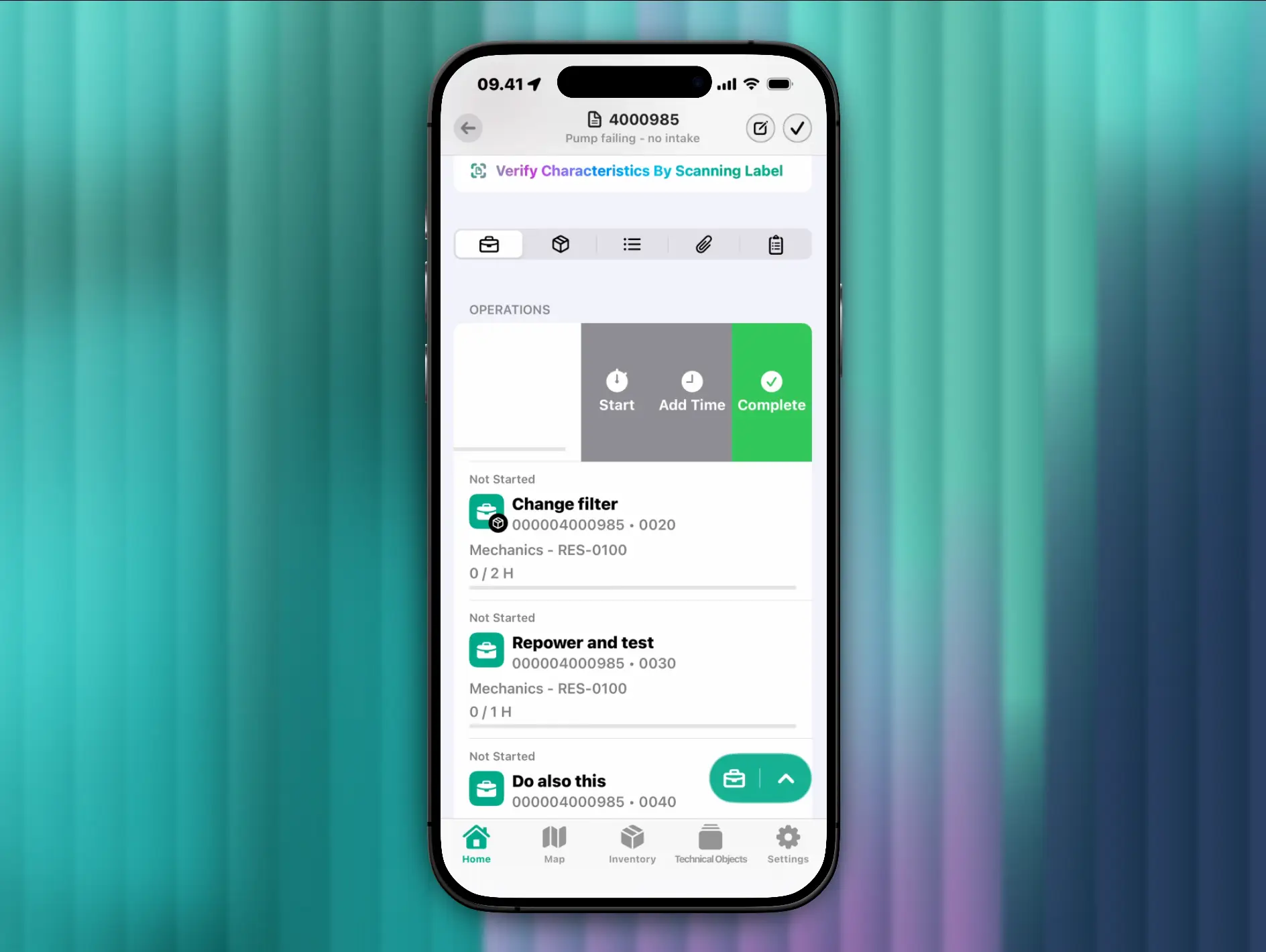
The fastest way to act on an operation is to swipe it. Swiping reveals the quick actions you've configured for your technicians, so a routine step can be a single tap.
For anything beyond a quick action, tap an operation to open its full detail view. From there you can confirm time, record measurement points, and register spare parts and components.
The components tab.
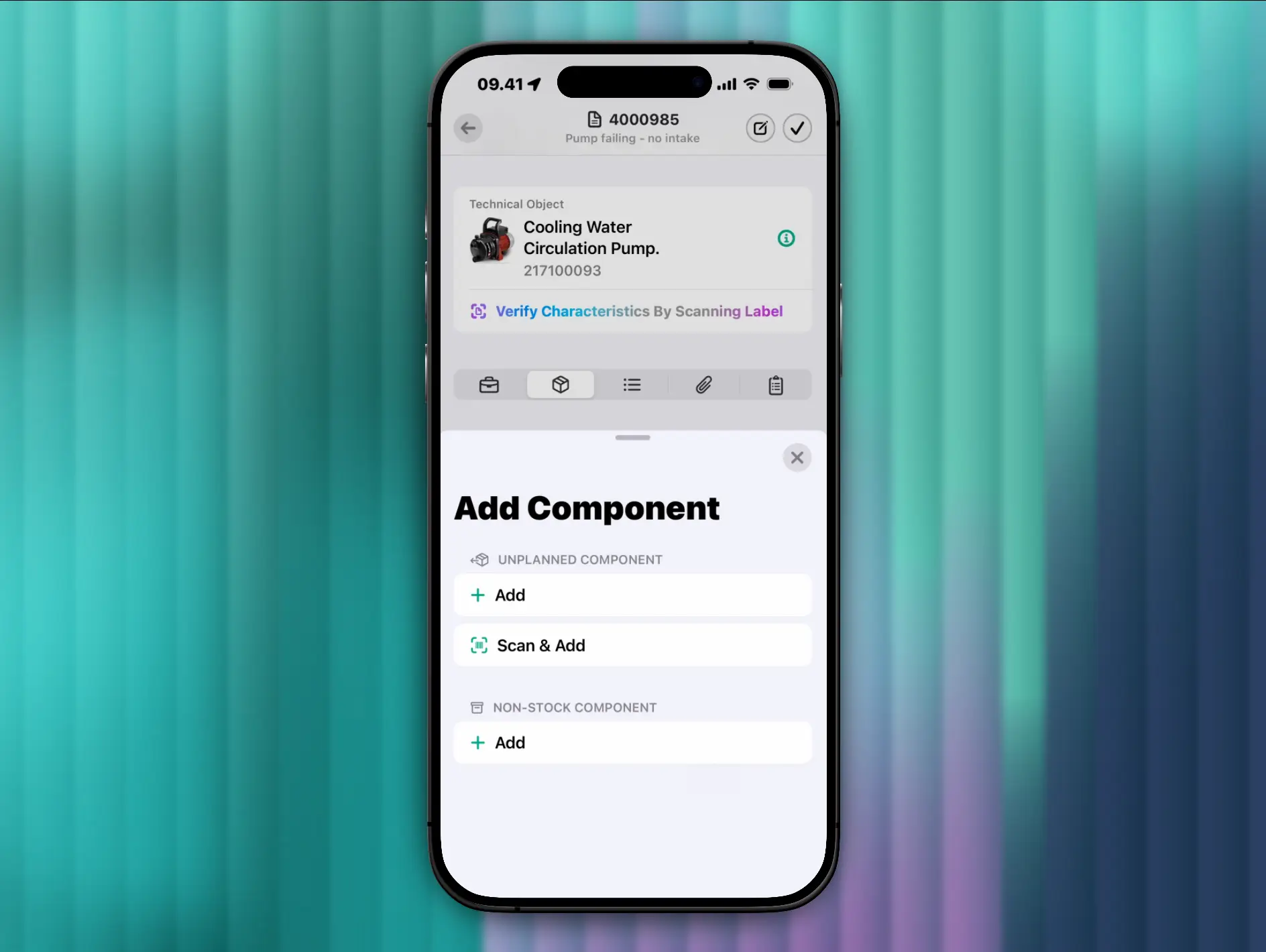
For a full overview of every component on a work order, open the components tab. It lists all the planned and unplanned components in one place.
Adding an unplanned component takes a couple of taps: open the action menu, then pick from the full inventory, choose from the bill of material, or barcode scan the material straight onto the order.
The other info tab.
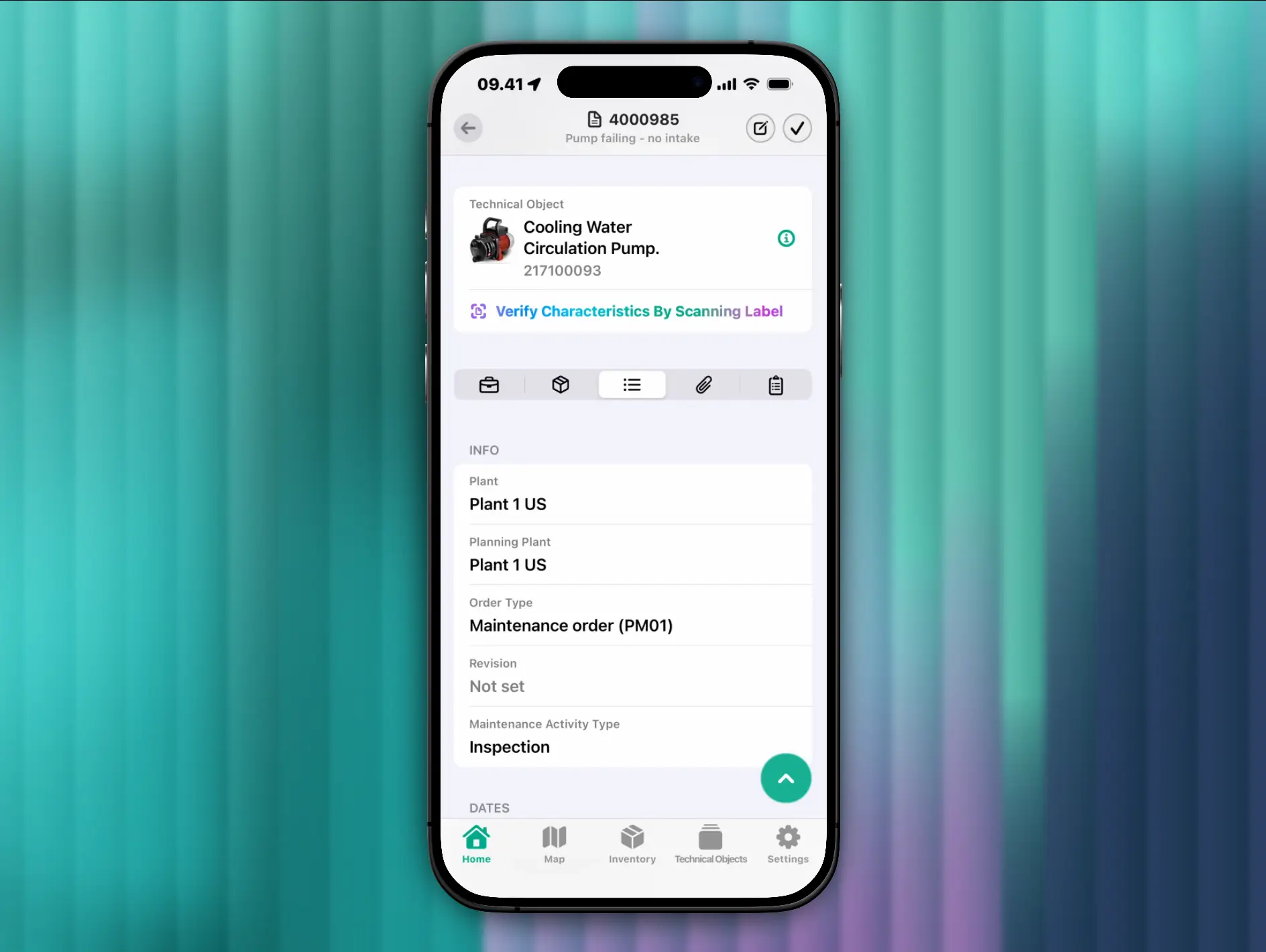
The other info tab holds any extra SAP data your technicians need on the job, beyond the operations and components.
It's configurable, so you surface the fields that matter to your processes and leave out the rest.
The attachments tab.
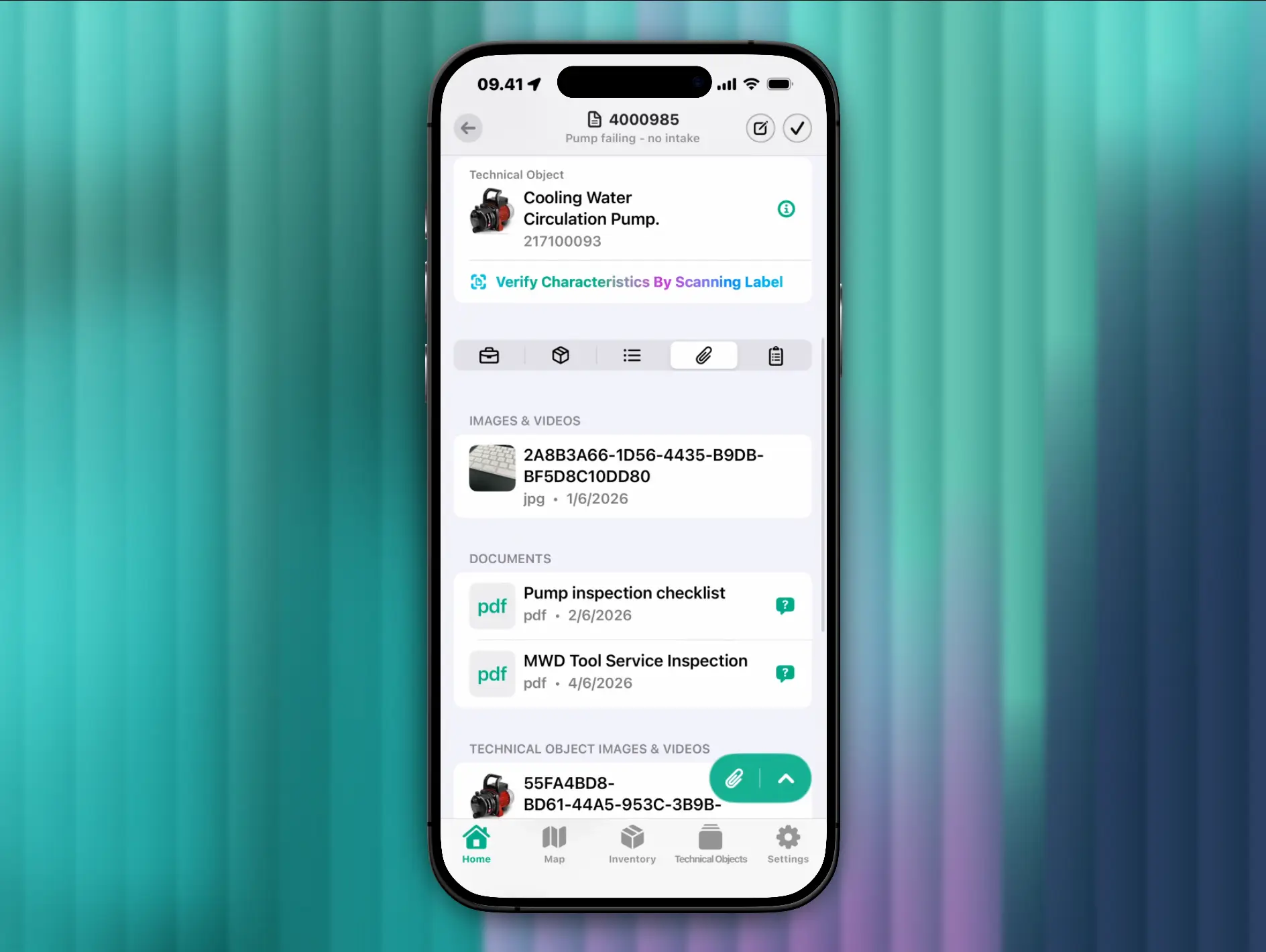
The attachments tab gathers every file tied to the work order in one place: photos, documents, and technical manuals.
It pulls them from wherever they're attached in SAP, whether that's the work order itself, the technical object, the notification, or the materials involved.
The forms tab.
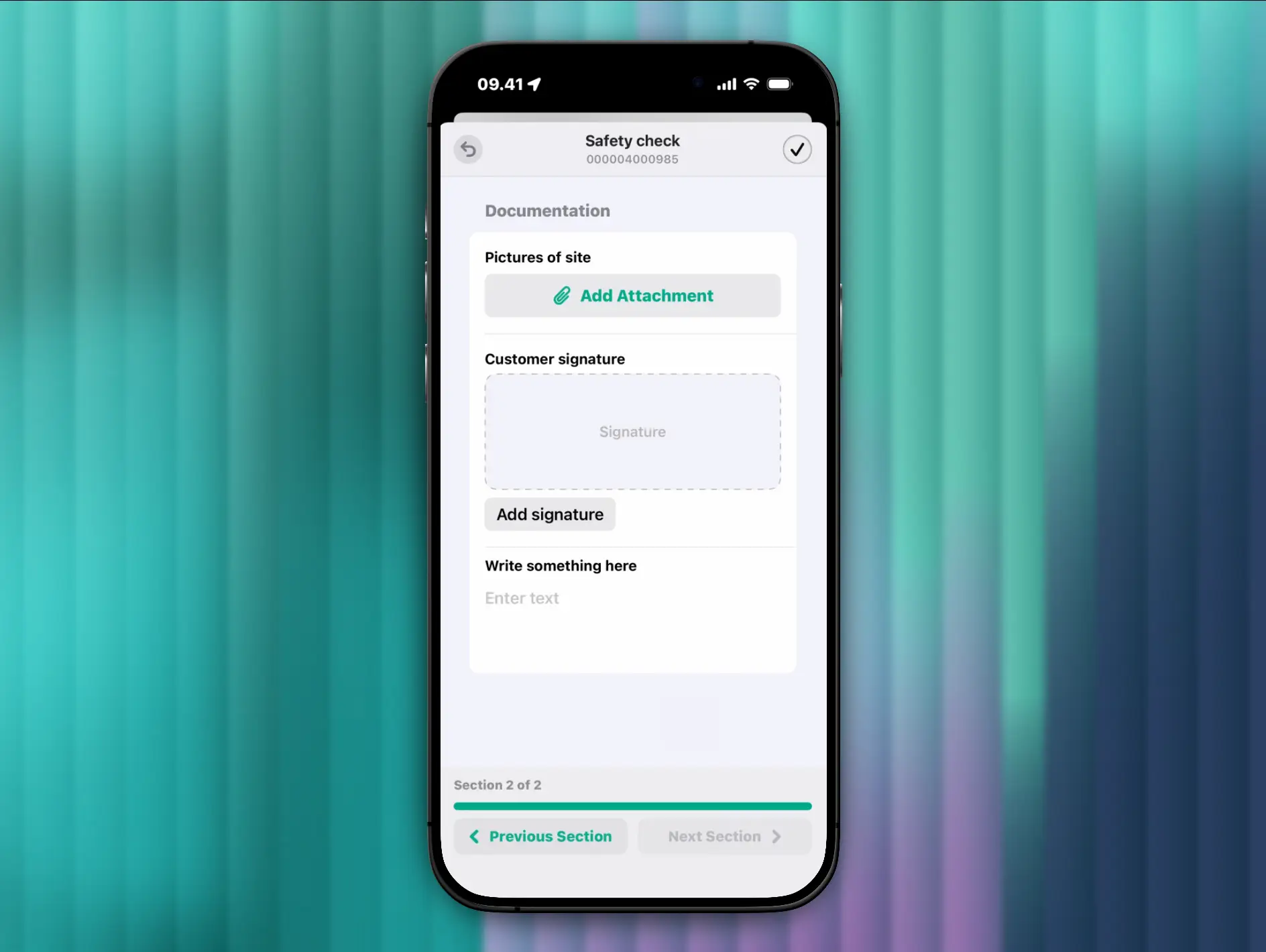
The forms tab shows the checklists and forms a technician needs to complete, powered by FastForms. If none is attached, you can add one yourself. In the video, we pull a safety check form example from the forms library.
FastForms supports a wide variety of field types, including conditional questions, so answering no can reveal a follow-up comment box. You can capture photos, signatures, and much more. You can also set rules, such as making a checklist required so that it has to be completed before the work order can be closed.
For a full look at building and distributing forms, see the FastForms walkthrough.
Get answers in the field with AI.
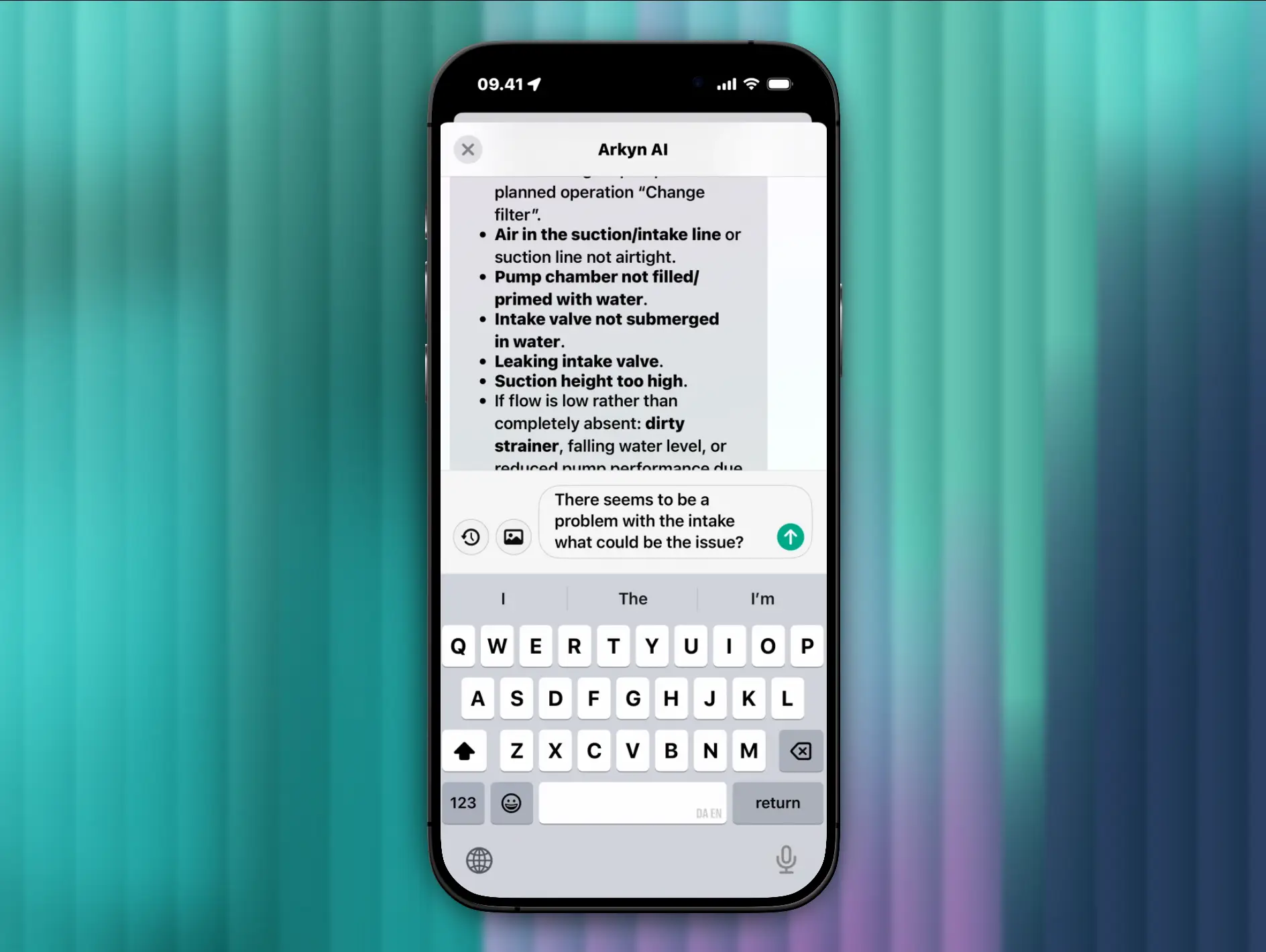
FastWork includes an AI assistant, reached through Ask Me Anything inside the order. It keeps a history of your previous questions, and you can ask in plain language, by typing or by voice.
In the video, we ask about a problem with the intake. The assistant reads across the manuals, documentation, and order history tied to that equipment, then comes back with the likely issues and the recommended checks for each one. It also cites its sources, so you can open the exact guide and page it pulled from and confirm for yourself.
One caveat: Most of what FastWork does works fully offline, but this feature reaches out to Arkyn's AI to read through your documentation, so it's online only for now.
Complete and close the order.
With the work done, completion is quick.
To close it, tap the close order checkmark. You decide whether to also close the underlying notification, and you can add a description or notes.
If you maintain cause codes and actions, you can record what caused the problem and how you fixed it, which is what makes failure analysis possible later. Confirm, and the order is technically complete (TECO in SAP). It drops off your list, and you move to the next job.
Find your assets on the map.
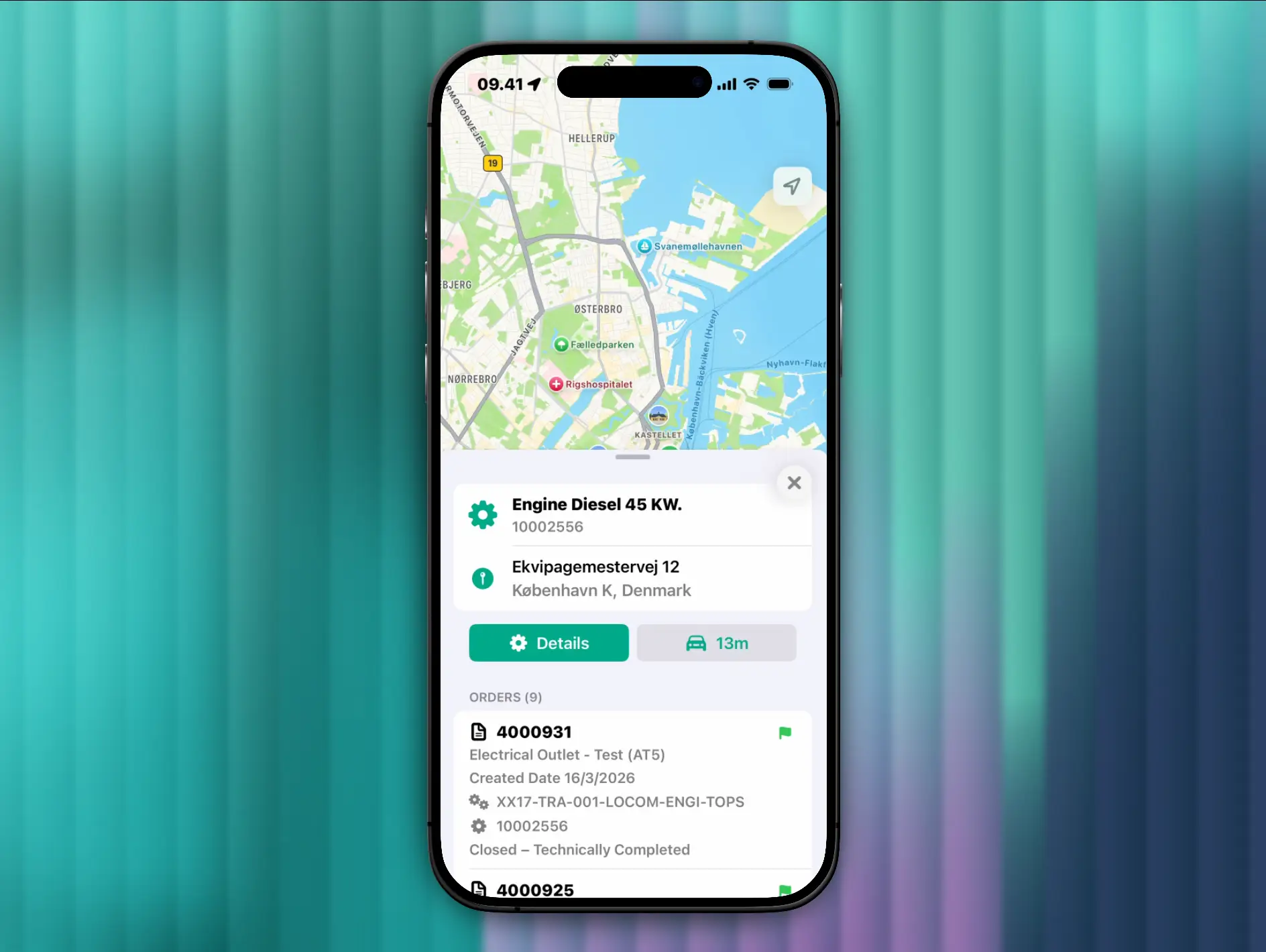
Back on the home screen, FastWork can plot your assets on a map. As with everything else, the bottom navigation is configurable, so if all your assets sit at a single plant you can switch the map off entirely.
For distributed assets, the map shows each one in its real location. Tap an asset to see its existing orders, details, and route directions. By default FastWork uses the built-in Apple and Google maps, and it can also use GIS maps like Esri for the richer, asset-specific detail some teams need.
Manage materials and inventory.
The inventory section lists your materials and storage locations. Tap a material to check its stock and confirm whether it's available at the storage location relevant to you. On each storage location you can review the goods movements that have happened.
FastWork also supports a range of inventory transactions: stock transfers, goods receipts, and inventory counts among them. All of it is role-based, so you decide how much of the warehouse process each technician can carry out.
Browse the full asset hierarchy.
The technical object section is a browser for the entire asset hierarchy in a plant. Take any part of the plant, drill down to any level, and you get the same information you saw on the work order: what the equipment is, its timeline, its history, and all its details.
To find a specific asset, barcode scan it (labels, 3D barcodes, and other tags all work) or search by name. Pick the equipment and you land straight on its record.
Control what data syncs to the device.
The settings section controls how much of SAP each technician carries on their device.
In user settings, you choose the plant to pull from, then narrow further by planner group or plant section. You can also set date limits, so a device holds the last couple of years of history rather than the last ten. It's how you keep the app fast and the data relevant to the person using it.
Let us know about your use case.
And that's the end of the tour. There's far more configuration possible underneath, so if there's a process you want to see or use case you have a question about, get in touch.